How to Read Text File Using Android Application | Realcode4you
>>> Purpose
In this blog, we will learn how to read a text file in an Android program. We are going to make an application based on MVC (Model-View-Controller) architecture for practice.
>>> Steps
Outline
Create project
Prepare text file
Resources
UI Design: View (activity_main.xml)
Model: Container.java
Logic code: Controller (MainActivity.java)
Test
>>> Outline
Suppose we read a text file line by line. The following figure shows steps to read the text file.
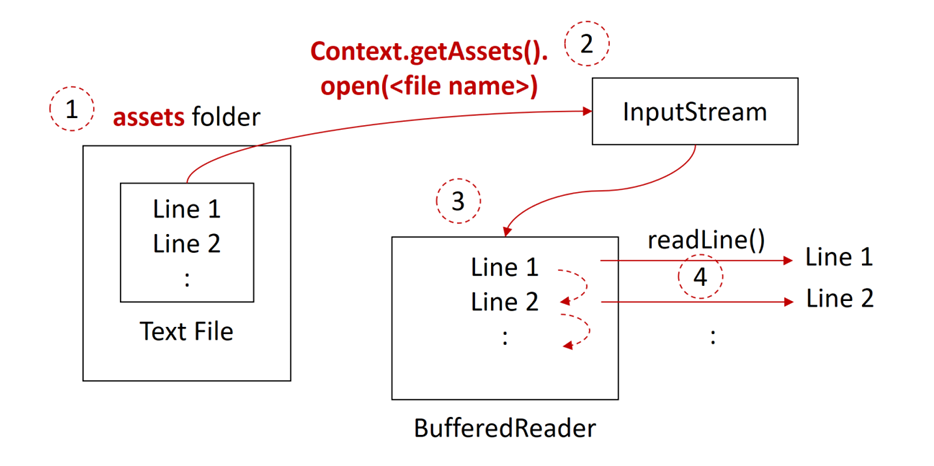
STEP1: Create an “assets” folder and put the text file in the folder.
STEP2: Create an input stream object through which data are read from the text file using “Context.getAssets().open()”.
STEP3: With the input stream, we create a BufferedReader object.
STEP4: Read line by line using “readLine()” until the end of lines.
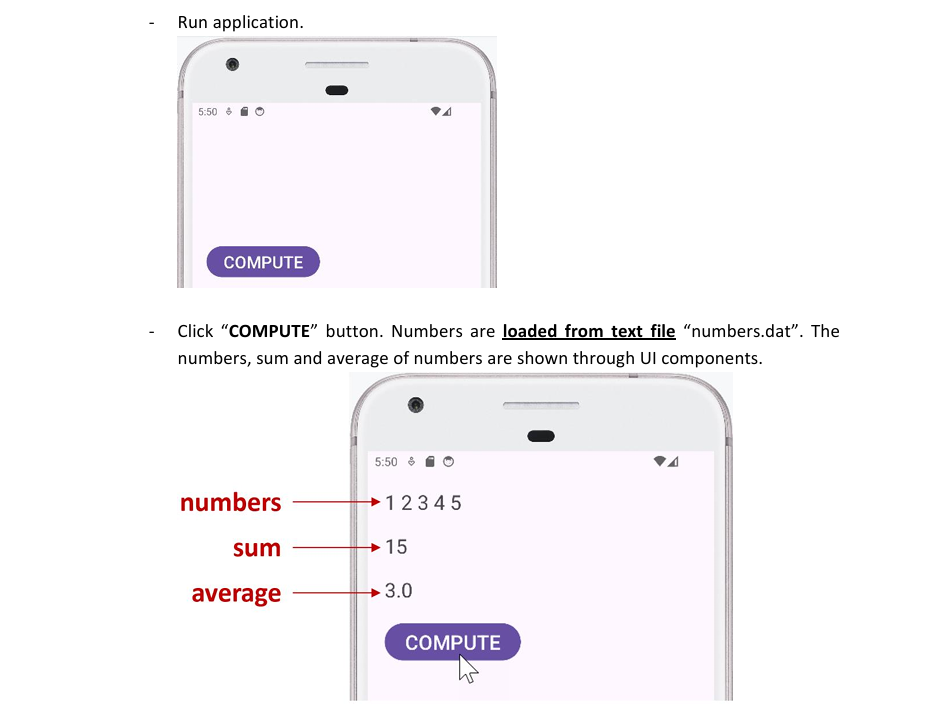
For practice, we will use MVC architecture as follows. “Container.java” is Model that loads data from text file (“number.dat”). “MainActivity.java” is Controller that processes data retrieved from Container. “activity_main.xml” is View that shows results that are received from controller.

>>> Create project
In this step, we create a project.
- Create a project, “ReadTextFile”.
o Select “File” – “New” – “New Project…”
o Choose “Empty Views Activity” template and click “Next”.
o On “Configure your project” window, fill out information. Click “Finish”.
▪ Project name: ReadTextFile
▪ Package name: edu.csustan.cs3810.readtextfile
▪ Save location: \codes\ReadTextFile
▪ Build configuration language: Groovy DSL (build.gradle)

>>> Prepare text file
In this step, we will prepare a text file that is loaded with the application.

- Create “assets” folder.

o “assets” folder is created.

- In “assets” folder, create “numbers.dat” with five numbers.

>>> Resources
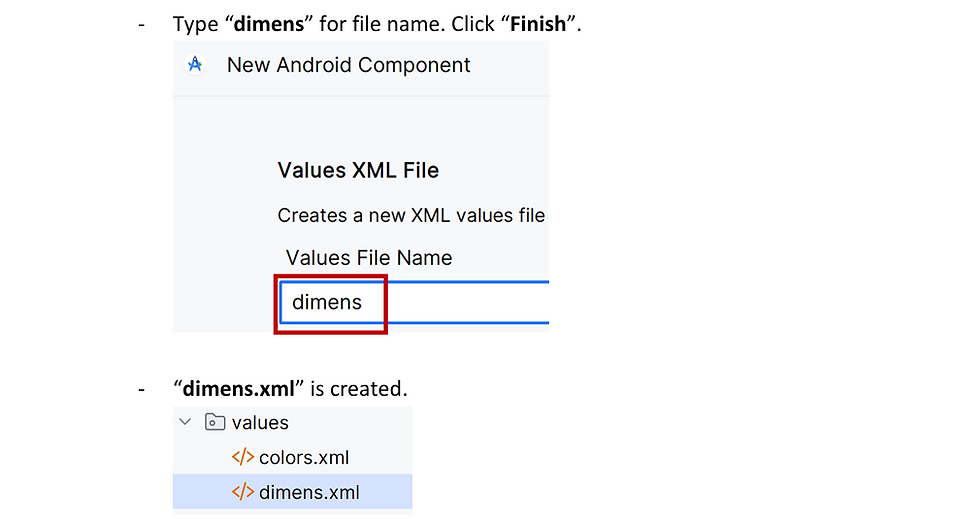
In this step, we define constants in dimens.xml and themes.xml.


>>> UI Design: View (activity_main.xml)
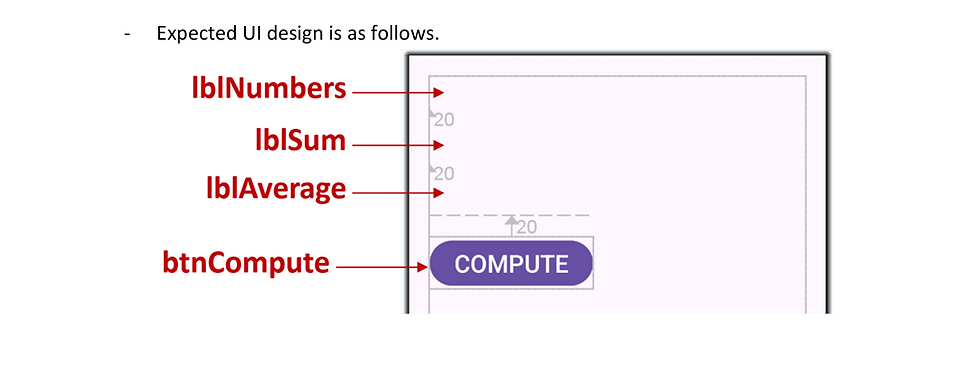
In this step, we add UI components and arrange them on the screen.


>>> Model: Container.java
In this step, we create Model, “Container.java” to load data from text file.


[ variables]
- Define two variables shown in rectangle.

“context” is used to access “numbers.dat” in “assests” folder.
ArrayList nums will contain numbers after they are loaded from file.
“ArrayList” are automatically imported. Otherwise, click “ArrayList”. Then, click Alt+Enter key to import classes.
- Add code to import “Context” class as shown in rectangle. The error on “Context” is gone.

[ method: load()]

First, we access “assets” folder using “context.getAssets()” method.
Second, “open()” opens the file and returns input stream object.
Third, we create a buffered reader object with the input stream.
Last, we read a line using “reader.readLine()”, and separate a string “1,2,3,4,5” into an array of string-type numbers (e.g. “1”, “2”, “3”, “4”, and “5”) using “split(<delimeter>)”. Then, we put each number into array list (nums) after converting type from string to integer.
- Add code to import “AssetManager” class and “java.io” package as shown in rectangle. The errors in red color are gone.

[ constructor]
- Add a constructor (shown in rectangle) that calls load() method so that data are loaded when container object is created.

When container object is created, we create an ArrayList object where numbers are saved.
DO NOT TYPE “filePath:” that is shown automatically.
[ methods: getNums()]

Logic code: Controller (MainActivity.java)
In this step, we create methods to get numbers from a container, compute sum and average.

- Open “MainActivity.java”.
[ variable: container]
- Add codes as shown in rectangle. Do NOT remove the existing code.

[ methods: getNums(), getSum(), getAvg()]

[ method: compute]
- Add a method to be called by clicking “COMPUTE” button.
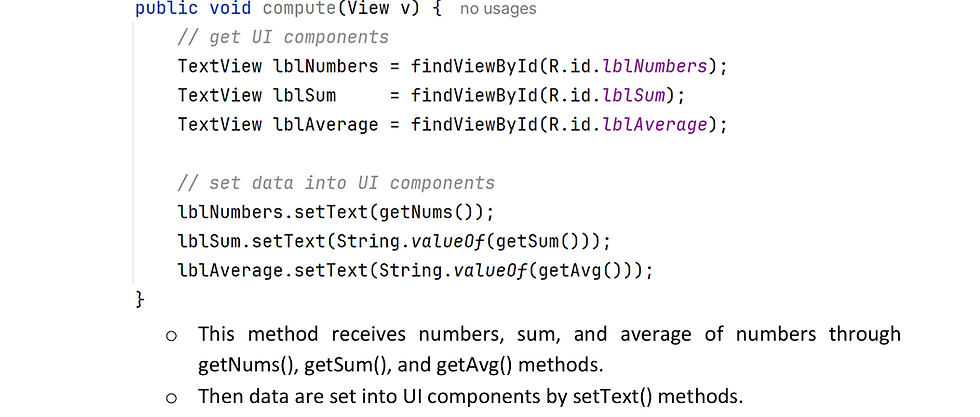
- Connect the button UI component to event handler.

>>> Test


nice