Get Help In Linux Homework | Linux Commands | Realcode4you
>>> Purpose This tutorial shows basic Linux commands.
>>>Prerequisite
- “how to install guest additions for Linux virtual machine” tutorial.
o Run Linux and log in Linux
>>> Environment - Linux VM (Ubuntu 20.04) on Oracle VirtualBox
>>> Steps
Ready to practice
Directory and file
Linux permission
Bash Shell Script
>>> Ready to practice
Open Oracle VirtualBox. Then, run and login Linux (Ubuntu) that we installed.
Open terminal by clicking terminal icon on the left tool bar.
We are in terminal, and you use . For me, is danny. Let’s learn Linux commands from
now on.

>>> Directory and file In this step, we will see how to create directories and files (using nano editor), how to show files and directories, how to go to directories, and how to check current directory.
- To create a directory, we use “mkdir”. Let’s make two directories such as dir1 and dir2. Type “mkdir dir1” and “mkdir dir2”.

- To list files and directories, we use “ls” (el-s). Type “ls”, and then type “ls -l" to see list more in detail.

“ls” command shows two directories (dir1, dir2) at the current directory.
“ls -l” command shows more detail information. For directory, (e.g. dir1), the left most letter is “d” which is directory.
- Let’s remove (empty) directories. Type “rmdir ” to remove an empty directory. Here, we remove unnecessary directories including Desktop, Documents, Downloads, Music, Pictures, Public, Templates, and Videos.

To remove a file, we use “rm ”.
-Type “ls -l". We see there are only three directories.

- Let’s create a file. To create a file, we can use nano editor. Nano editor is very simple to use, but I recommend you (as a computer science major) to use VI editor (a little bit harder to use than nano editor) that we will practice later. Let’s create a “hello.txt” file. Type “nano hello.txt”.
Using nano editor is the same as using notepad. Use arrow keys to move. Let’s make two lines. Type “hello” in the first line and “” in the second line.

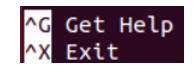
The commands of nano editor are shown below of the screen. To save the current file, we use “Write Out” command. Hit and o. It shows file name. Hit key, and the file is saved.

To exit nano editor, hit and x.
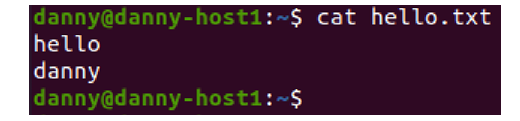
To see the text file, we use “cat”. Type “cat hello.txt”.
- Now, let me check your understanding. Create a “hello1.txt” file that has a line with “have a great day” using nano editor. To save and exit at the same time, we can just hit and x (without hitting and o). You will see “Save modified buffer”. Hit “y” to save, and hit key to confirm the file name (“hello1.txt”). Let’s see the text file “hello1.txt”.

-To edit an existing file, we just use “nano ”. Let’s change hello1.txt so that it has “have a wonderful day”. Type “nano hello1.txt”, and change “great” to “wonderful”. Save and exit. Let’s see the changed “hello1.txt”.

-Let’s see files and directories at the current directory. Type “ls -l".

“ls” command shows directories (dir1, dir2) and files (hello.txt, hello1.txt) at the current directory.
“ls -l” command shows more detail information. For directory, (e.g. dir1), the left most letter is “d” which is directory. For file (e.g. hello.txt), the left most letter is “-“ (dash) which is file.
-To see current directory at which we are, we use “pwd” (print working directory). Type “pwd”. We see “/home/”, which is called “home directory”. “home directory” is the directory where we are just after we log in.

-To change directory, we use “cd”. Type “cd dir1” to go to “dir1” directory. Then, type “pwd” to see current directory.

- Linux has “.” (dot) notation which means current directory, and “..” (dot dot) notation which means parent directory. So, to go up to the parent directory, we use “cd ..”. Type “cd ..”, and see current directory. ***NOTE: Please have a space between a command (e.g. cd) and arguments (e.g. ..) ***

-Let me check your understanding. Go to “dir1” directory. Create “dir1sub” directory, and go to the “dir1sub” directory. Check the current directory. You should see following.

-How do we go back to home directory from dir1sub? We can type “cd ../..” However, no matter where we are, we can type “cd” to go back to home directory. Type “cd” (without ../..).

-To copy a file, we use “cp”. Let’s copy hello1.txt from home directory to “dir2” directory. Type “cp hello1.txt dir2” (cp ). Then, type “ls” and “ls dir2” to see files of the current directory and dir2 directory.

-To move a file we use “mv”. Let’s move hello.txt from home directory to “dir1” directory. Type “mv hello.txt dir1” (mv ). Then, type “ls” and “ls dir1” to see files of the current directory and dir1 directory. “hello.txt” was moved to “dir1”.

-To rename a file, we can use “mv” as well. Let’s rename hello.txt (in dir1 directory) to hello2.txt. Type “cd dir1” to go to dir1 directory, and type “ls”. Then, type “mv hello.txt hello2.txt”, and type “ls” again to check the change.

To remove a file, we use “rm”. Let’s remove hello2.txt file. Type “rm hello2.txt”, and type “ls” to see if the file has been removed.

Let’s go back to home directory. Type “cd”.

TIP: if you want to clear screen, type “clear”.
>>> Linux permission
In this step, we talk about permission in Linux. Linux provides three types of permissions such as read, write, and execute permission for user (or owner), group, and other. The user (or owner) is a person who created a file or a directory. The group is people who are in the same group as the user. The other is people who are neither user nor person in group.
-When you create a file or a directory, the user and the group are your id. For dir1, the user is “danny” and the group is “danny”. (you will see your id).

For dir1, there are 9 letters (rwxr-xr-x) after “d” (directory). The first three letters are applied to user. So, user has read/write/execute permission for the “dir1”. The second three letters are applied to group. So, group has read and execute permission. The third three letters are applied to other. So other people have read and execute permission for the dir1 directory.
For hello1.txt, user and group have read and write permission, but other does not have write permission. So, only user (file owner) and group can update the file, but other only can read the file.
Let’s talk about following permission. User/Group/Other has all read/write/execute permission. “rwx” can be denoted by binary notation, 111. If each letter is “-“, the binary notation is 0. Thus, “---“ means “000” in binary notation. Also, if we convert the binary notation to decimal notation, following permission becomes 777. (111 in binary is 7 in decimal).

Then, what is decimal notation of “hello1.txt” file permission?

In binary notation, that is 110110100. In decimal notation, that is interpreted as 664.
Sometimes, we need to change file permission. For example, a user (file owner) wants other to update the file. In this case, we need to give “w” permission to “other”: the 9 symbols should be “rw-rw-rw-" (decimal notation: 666).
To change permission of file or directory, we use “chmod”. If we want to add “w” permission (for other) to hello1.txt, type “chmod 666 hello1.txt” as follows.

Now we see “w” permission for other on hello1.txt file. (rw-rw-r--)
>>> Bash Shell Script
- Bash shell script is used to automate operations in Linux. The file extension of the Bash shell script is “sh”. We will create a simple Bash shell script.
Type “nano hello.sh” to create a Bash shell script.

Type following in “hello.sh”. Then, save and exit (by and x).

Bash shell script starts with “#!/bin/bash”.
echo “Hello Danny” prints “Hello Danny” to standard output which is screen.
We can run Linux commands in Bash shell script. Here, we run “ls -l” command.
-Type “ls -l”. Do you see the “execute” permission for hello.sh? No. We see “rw-“ that does not have the “execute” permission for the user (file owner). To run the “hello.sh”, user should have the “execute” permission.

Let’s add the “execute” permission of user. Type “chmod 744 hello.sh”, and type “ls -l" to check if permission has been changed. The color of the “hello.sh” changes to green.

Let’s run hello.sh. Type “./hello.sh” (/hello.sh). means current directory. “hello.sh” runs two commands. The first one is “echo Hello Danny”, and the other one is “ls -l".

In Linux, we need to use “./” before a command even though the command is in the current directory. To run “hello.sh” (without ./), we need to add “.” (dot) into “PATH” environment variable.
Type “env | grep PATH” to check “PATH” environment variable.

“env” is a command showing all environment variables of the user.
“|” (pipeline) is to get the output of the previous command (env), and send to the next command as an input. So, the output of “env” goes to input of “grep PATH”.
“grep PATH” is a command to extract lines containing “PATH” keyword.
-Type “ls -al”. (“a” is used to see hidden system file).

The file starting with “.” is hidden file.
“.bashrc” is a file with system environment for the current user.
Type “cp .bashrc .bashrc.org” and make a backup of the “.bashrc” file.

Type “nano .bashrc” to edit .bashrc

***DO NOT REMOVE EXISTING CODES***. Just go to the bottom of the file (using the down arrow key) and add two lines as follows. Save and exit.

“$PATH” means the existing PATH. So, we add “.” to the existing PATH. “:” is used as a delimiter between the existing PATH and “.”.
Linux is case-sensitive. Use PATH (rather than path).
DO NOT HAVE SPACES in the first line. (e.g. no space between PATH and “=”)
Type “source .bashrc” to apply the change in .bashrc. Running the command is the same as logging out and in again.

Type “env | grep PATH” and check “.” is in PATH environment variable.

Now, type “hello.sh” (without ./). It runs because “.” is in PATH.

>>> Summary
We practiced basic Linux commands, learned permission and Bash shell script.


Comments